# Code Manager

Desktop application (Visual Basic, CDS/ISIS database) to manage the tables of codes/values used by SciELO Methodology.

Used in the [Local Server](https://scielo.readthedocs.io/projects/scielo-pc-programs/en/latest/concepts.html#local-server)

This program is only used if it is necessary to change data of the [customizable tables (newcode database)](https://scielo.readthedocs.io/projects/scielo-pc-programs/en/latest/newcode_database.html)

## Opening the program

Use the Windows menu to open the program.
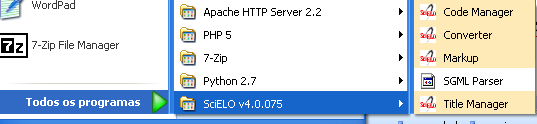
<div id="bkmrk-"><div>![_images/scielo_menu.png](https://scielo.readthedocs.io/projects/scielo-pc-programs/en/latest/_images/scielo_menu.png)</div></div>Or use the Windows Explorer:

> c:\\scielo\\bin\\codes\\codes.exe
> 
> (or corresponding to c:\\scielo)

## Managing the tables

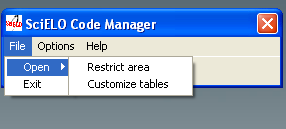
<div id="bkmrk-select-file-%3E-open%3A-">1. Select File &gt; Open:

![_images/codemanager_file_open.png](https://scielo.readthedocs.io/projects/scielo-pc-programs/en/latest/_images/codemanager_file_open.png)- **Restricted Area** is used only by SciELO Methodology team. It is password protected. ([Code database](https://scielo.readthedocs.io/projects/scielo-pc-programs/en/latest/code_database.html))
- **Customizing Tables** is to manage the customizable tables. ([Newcode database](https://scielo.readthedocs.io/projects/scielo-pc-programs/en/latest/newcode_database.html))

</div>## Accessing a table

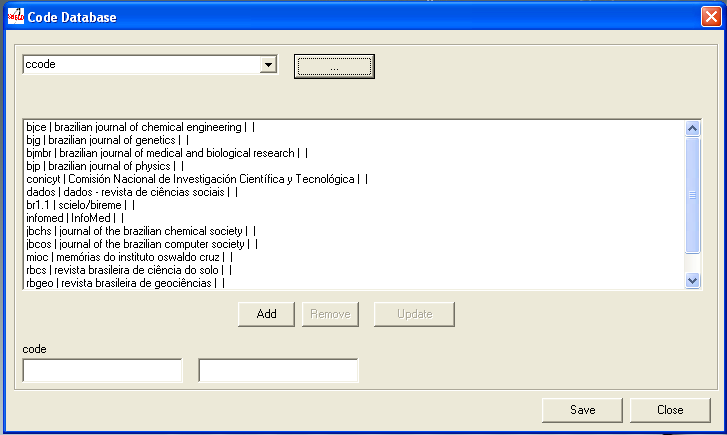
Select the name of one of the tables, then click on the \[…\] button.
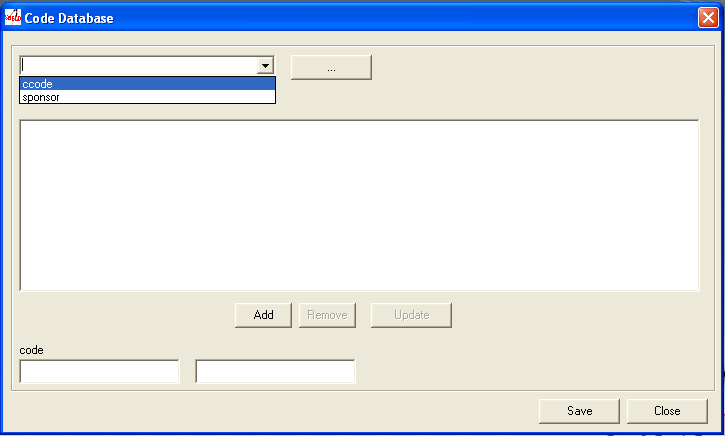
<div id="bkmrk--0"><div>![_images/codemanager_select_table.png](https://scielo.readthedocs.io/projects/scielo-pc-programs/en/latest/_images/codemanager_select_table.png)</div></div>The program will display the selected table:

<div id="bkmrk--1"><div>![_images/codemanager_table.png](https://scielo.readthedocs.io/projects/scielo-pc-programs/en/latest/_images/codemanager_table.png)</div></div>The data of the table will be presented as: code | label in Portuguese | Spanish | English. But if there is no dependence on any language, only one column is displayed.

## Removing a row of the table

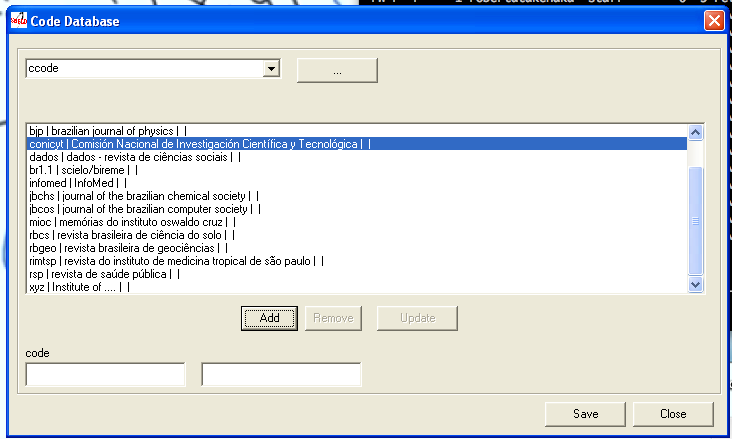
<div id="bkmrk-select-a-row-to-dele">1. Select a row to delete. Its data will be presented at code and labels fields of each language.
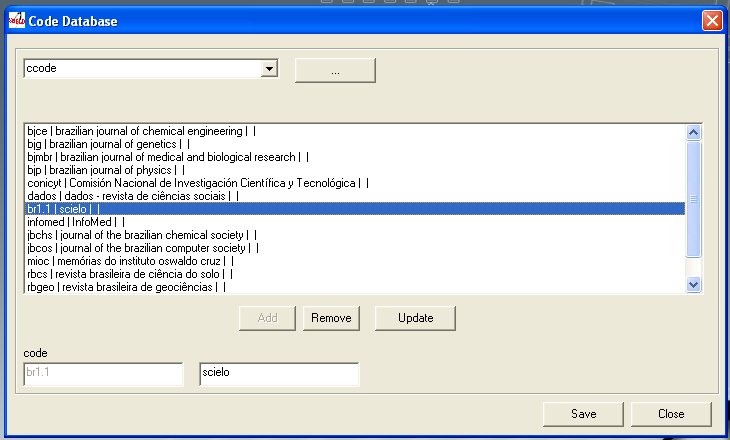
![_images/codemanager_select_row.png](https://scielo.readthedocs.io/projects/scielo-pc-programs/en/latest/_images/codemanager_select_row.png)2. Click on Remove button.
3. Click on Save button.

</div>## Updating a row of the table

<div id="bkmrk-select-a-row-to-upda">1. Select a row to update. Its data will be presented at code and labels fields of each language.

![_images/codemanager_select_row.png](https://scielo.readthedocs.io/projects/scielo-pc-programs/en/latest/_images/codemanager_select_row.png)2. Change the data.
3. Click on Update button. The updated row will be displayed in the list.
4. Click on Save button

</div>## Creating a new row

<div id="bkmrk-fill-in-the-fields%3A-"><div>1. Fill in the fields: code and label of each language or only one if it is not depending on a language.
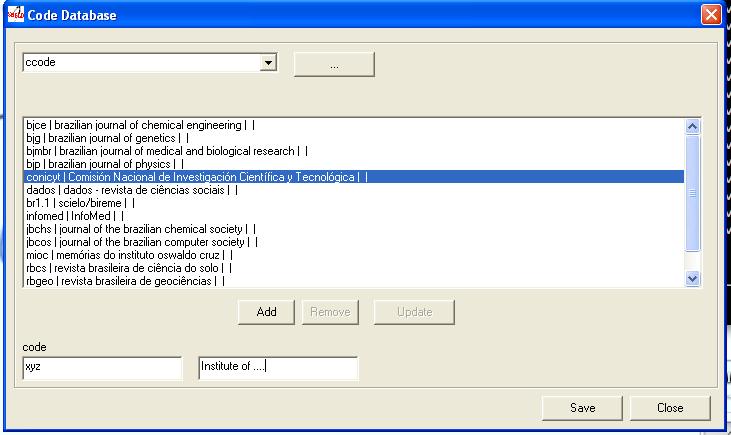
![_images/codemanager_adding_new_line.png](https://scielo.readthedocs.io/projects/scielo-pc-programs/en/latest/_images/codemanager_adding_new_line.png)2. Click on Add button.

![_images/codemanager_added_new_line.png](https://scielo.readthedocs.io/projects/scielo-pc-programs/en/latest/_images/codemanager_added_new_line.png)</div></div>The new row will be displayed at the end of the list.

<div id="bkmrk-click-on-save-button">3. Click on Save button.

</div>