# HOW TO INSTALL POSTGRESQL ON ROCKY LINUX

## Prerequisites

- An Rocky Linux system.
- A user with root or sudo privileges. This user will be used for installing new packages and make changes system-wide.

## Installing PostgreSQL on Rocky Linux

<span style="color: #474b51; font-family: Tahoma, Helvetica, Arial, sans-serif; font-size: 16px; font-style: normal; font-variant-ligatures: normal; font-variant-caps: normal; font-weight: 400; letter-spacing: normal; orphans: 2; text-align: start; text-indent: 0px; text-transform: none; white-space: normal; widows: 2; word-spacing: 0px; -webkit-text-stroke-width: 0px; background-color: #ffffff; text-decoration-thickness: initial; text-decoration-style: initial; text-decoration-color: initial; display: inline !important; float: none;">List out the available streams for the `postgresql` module using the `dnf` command:</span>

```
dnf module list postgresql
```

```
Output

[root@node02-postgresql ~]# dnf module list postgresql
Last metadata expiration check: 0:16:48 ago on Fri 07 Jun 2024 10:51:45 AM -03.
Rocky Linux 8 - AppStream
Name                           Stream                     Profiles                               Summary                                               
postgresql                     9.6                        client, server [d]                     PostgreSQL server and client module                   
postgresql                     10 [d]                     client, server [d]                     PostgreSQL server and client module                   
postgresql                     12                         client, server [d]                     PostgreSQL server and client module                   
postgresql                     13                         client, server [d]                     PostgreSQL server and client module                   
postgresql                     15                         client, server [d]                     PostgreSQL server and client module                   
postgresql                     16                         client, server [d]                     PostgreSQL server and client module                   

Hint: [d]efault, [e]nabled, [x]disabled, [i]nstalled
```

You can see in this output that there are four versions of PostgreSQL available from the **AppStream** repository: `9.6`, `10`, `12`, and `13`. The stream that provides Postgres version 10 is the default, as indicated by the `[d]` following it. To install that version, you could just run `sudo dnf install postgresql-server` and move on to the next step. However, even though version 10 is still maintained, this tutorial will install Postgres version 16.

To install PostgreSQL version 16, you must enable that version’s module stream. When you enable a module stream, you override the default stream and make all of the packages related to the enabled stream available on the system. Note that only one stream of any given module can be enabled on a system at the same time.

To enable the module stream for Postgres version 16, run the following command:

```
sudo dnf module enable postgresql:16
```

When prompted, press `y` and then `ENTER` to confirm that you want to enable the stream:

```
Output

[root@node02-postgresql ~]# dnf module enable postgresql:16
Last metadata expiration check: 0:16:59 ago on Fri 07 Jun 2024 10:51:45 AM -03.
Dependencies resolved.
=======================================================================================================================================================
 Package                             Architecture                       Version                              Repository                           Size
=======================================================================================================================================================
Enabling module streams:
 postgresql                                                             16                                                                            

Transaction Summary
=======================================================================================================================================================

Is this ok [y/N]: y
Complete!
```

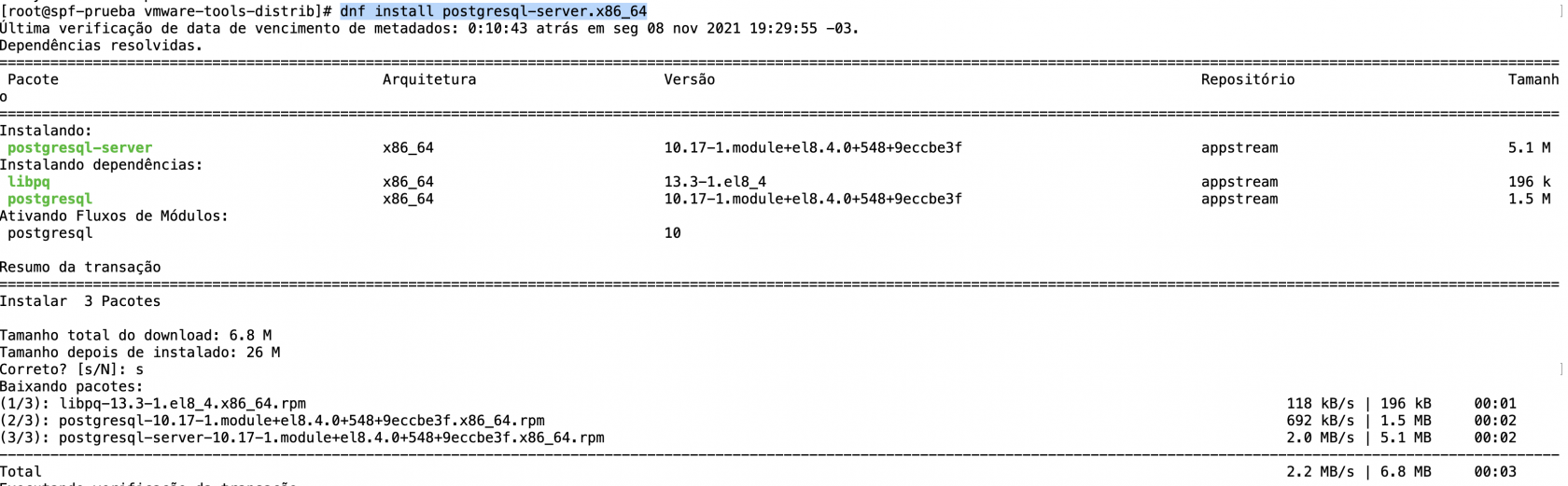
<span style="color: #474b51; font-family: Tahoma, Helvetica, Arial, sans-serif; font-size: 16px; font-style: normal; font-variant-ligatures: normal; font-variant-caps: normal; font-weight: 400; letter-spacing: normal; orphans: 2; text-align: start; text-indent: 0px; text-transform: none; white-space: normal; widows: 2; word-spacing: 0px; -webkit-text-stroke-width: 0px; background-color: #ffffff; text-decoration-thickness: initial; text-decoration-style: initial; text-decoration-color: initial; display: inline !important; float: none;"> Install the latest version of PostgreSQL from the repository using the dnf command below.</span>

```command
dnf install postgresql-server.x86_64
```

[![image-1636411419853.png](https://documentacao.scielo.org/uploads/images/gallery/2021-11/scaled-1680-/image-1636411419853.png)](https://documentacao.scielo.org/uploads/images/gallery/2021-11/image-1636411419853.png)
## PostgreSQL Database Initialization

<span style="color: #474b51; font-family: Tahoma, Helvetica, Arial, sans-serif; font-size: 16px; font-style: normal; font-variant-ligatures: normal; font-variant-caps: normal; font-weight: 400; letter-spacing: normal; orphans: 2; text-align: start; text-indent: 0px; text-transform: none; white-space: normal; widows: 2; word-spacing: 0px; -webkit-text-stroke-width: 0px; background-color: #ffffff; text-decoration-thickness: initial; text-decoration-style: initial; text-decoration-color: initial; display: inline !important; float: none;">Next, after the PostgreSQL installation is complete, you must initialize the PostgreSQL configuration and then start and enable the PostgreSQL service.</span>

<span style="color: #474b51; font-family: Tahoma, Helvetica, Arial, sans-serif; font-size: 16px; font-style: normal; font-variant-ligatures: normal; font-variant-caps: normal; font-weight: 400; letter-spacing: normal; orphans: 2; text-align: start; text-indent: 0px; text-transform: none; white-space: normal; widows: 2; word-spacing: 0px; -webkit-text-stroke-width: 0px; background-color: #ffffff; text-decoration-thickness: initial; text-decoration-style: initial; text-decoration-color: initial; display: inline !important; float: none;">1. Execute the following command to initialize the PostgreSQL database configuration.</span>

```command
postgresql-setup --initdb --unit postgresql
```

<span style="color: #474b51; font-family: Tahoma, Helvetica, Arial, sans-serif; font-size: 16px; font-style: normal; font-variant-ligatures: normal; font-variant-caps: normal; font-weight: 400; letter-spacing: normal; orphans: 2; text-align: start; text-indent: 0px; text-transform: none; white-space: normal; widows: 2; word-spacing: 0px; -webkit-text-stroke-width: 0px; background-color: #ffffff; text-decoration-thickness: initial; text-decoration-style: initial; text-decoration-color: initial; display: inline !important; float: none;">2. After that, start and enable the PostgreSQL service using the command below.</span>

```command
sudo systemctl enable postgresql
sudo systemctl start postgresql
```

Now the PostgreSQL service is active and running, and it will run automatically on every boot.

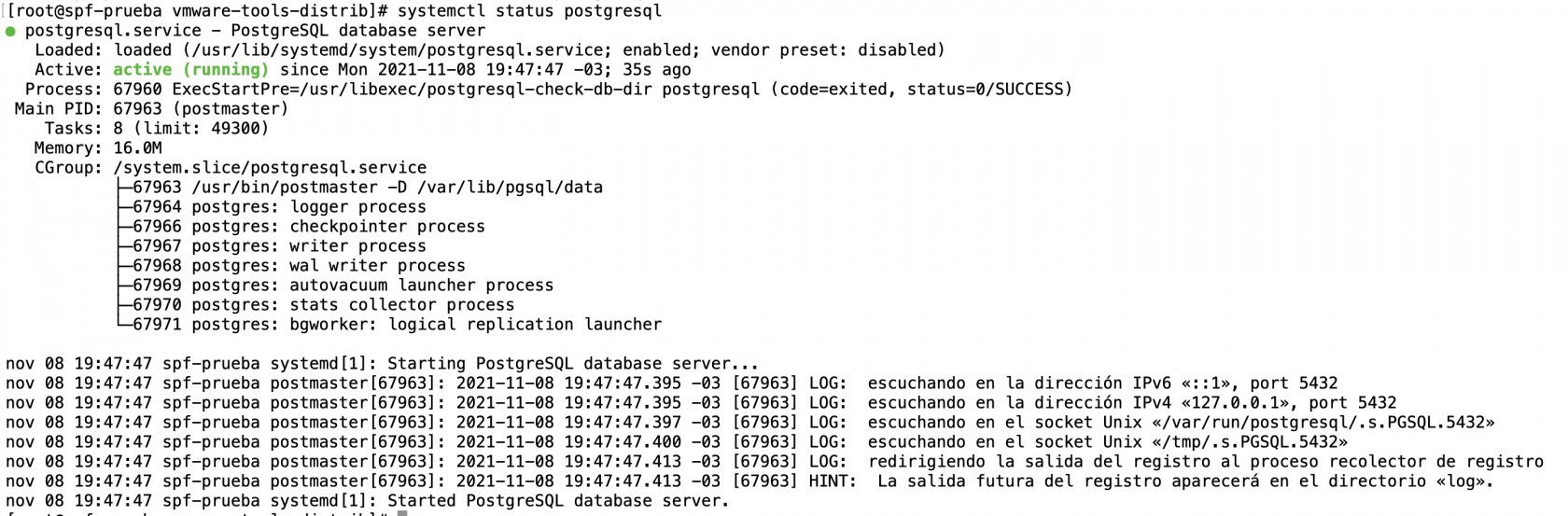
3\. Now execute the command below to verify the PostgreSQL service.

```command
systemctl status postgresql
```

<span style="color: #474b51; font-family: Tahoma, Helvetica, Arial, sans-serif; font-size: 16px; font-style: normal; font-variant-ligatures: normal; font-variant-caps: normal; font-weight: 400; letter-spacing: normal; orphans: 2; text-align: start; text-indent: 0px; text-transform: none; white-space: normal; widows: 2; word-spacing: 0px; -webkit-text-stroke-width: 0px; background-color: #ffffff; text-decoration-thickness: initial; text-decoration-style: initial; text-decoration-color: initial; display: inline !important; float: none;">If your PostgreSQL service is running, you will see the green output such as </span>**"active(running)"**<span style="color: #474b51; font-family: Tahoma, Helvetica, Arial, sans-serif; font-size: 16px; font-style: normal; font-variant-ligatures: normal; font-variant-caps: normal; font-weight: 400; letter-spacing: normal; orphans: 2; text-align: start; text-indent: 0px; text-transform: none; white-space: normal; widows: 2; word-spacing: 0px; -webkit-text-stroke-width: 0px; background-color: #ffffff; text-decoration-thickness: initial; text-decoration-style: initial; text-decoration-color: initial; display: inline !important; float: none;"> as below. Otherwise, you will see the red output such as "</span>**failed**<span style="color: #474b51; font-family: Tahoma, Helvetica, Arial, sans-serif; font-size: 16px; font-style: normal; font-variant-ligatures: normal; font-variant-caps: normal; font-weight: 400; letter-spacing: normal; orphans: 2; text-align: start; text-indent: 0px; text-transform: none; white-space: normal; widows: 2; word-spacing: 0px; -webkit-text-stroke-width: 0px; background-color: #ffffff; text-decoration-thickness: initial; text-decoration-style: initial; text-decoration-color: initial; display: inline !important; float: none;">" following by the error message logs.</span>

[![image-1636411733930.png](https://documentacao.scielo.org/uploads/images/gallery/2021-11/scaled-1680-/image-1636411733930.png)](https://documentacao.scielo.org/uploads/images/gallery/2021-11/image-1636411733930.png)

## Securing PostgreSQL Deployment

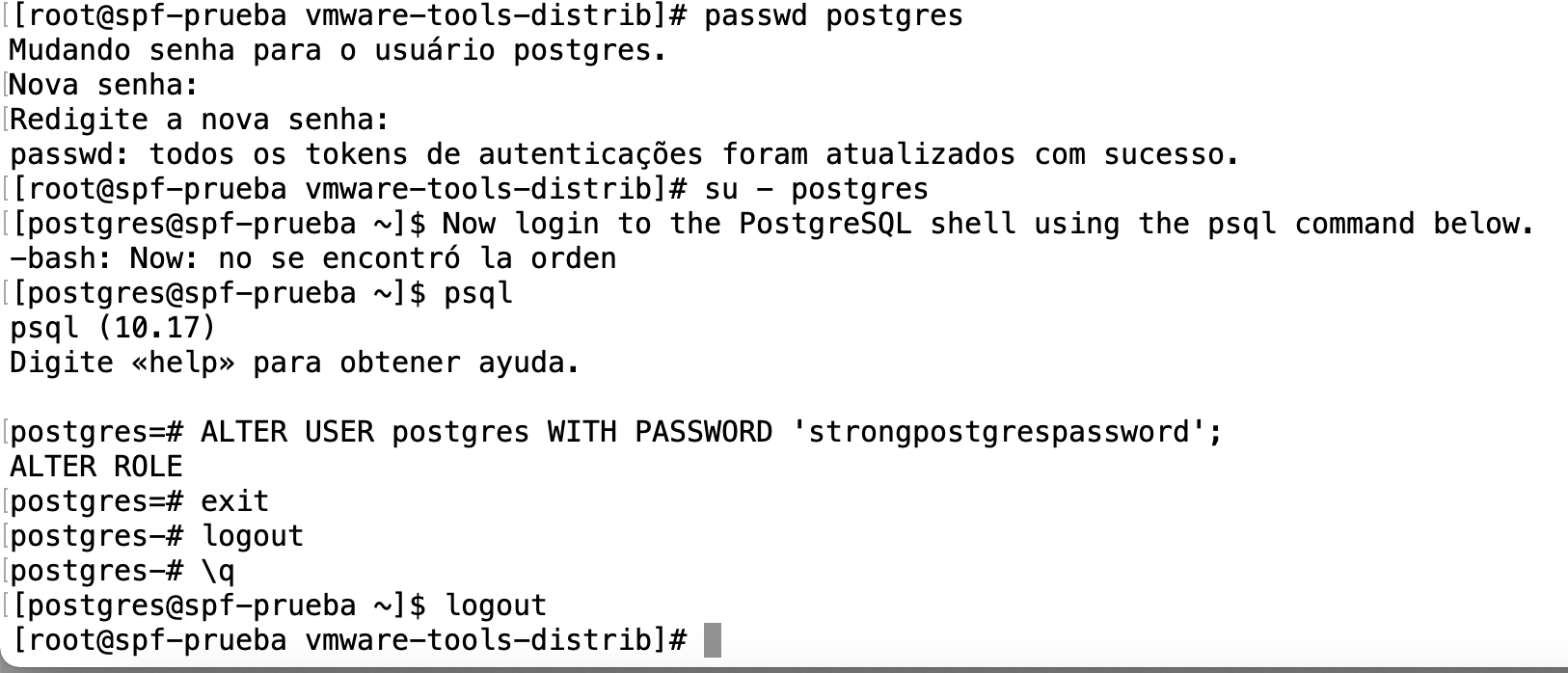
<span style="color: #474b51; font-family: Tahoma, Helvetica, Arial, sans-serif; font-size: 16px; font-style: normal; font-variant-ligatures: normal; font-variant-caps: normal; font-weight: 400; letter-spacing: normal; orphans: 2; text-align: start; text-indent: 0px; text-transform: none; white-space: normal; widows: 2; word-spacing: 0px; -webkit-text-stroke-width: 0px; background-color: #ffffff; text-decoration-thickness: initial; text-decoration-style: initial; text-decoration-color: initial; display: inline !important; float: none;">During the installation, PostgreSQL will create a new system user and database user name as "</span>**postgres**<span style="color: #474b51; font-family: Tahoma, Helvetica, Arial, sans-serif; font-size: 16px; font-style: normal; font-variant-ligatures: normal; font-variant-caps: normal; font-weight: 400; letter-spacing: normal; orphans: 2; text-align: start; text-indent: 0px; text-transform: none; white-space: normal; widows: 2; word-spacing: 0px; -webkit-text-stroke-width: 0px; background-color: #ffffff; text-decoration-thickness: initial; text-decoration-style: initial; text-decoration-color: initial; display: inline !important; float: none;">". And for this stage, you will be setting up a new password for the "</span>**postgres**<span style="color: #474b51; font-family: Tahoma, Helvetica, Arial, sans-serif; font-size: 16px; font-style: normal; font-variant-ligatures: normal; font-variant-caps: normal; font-weight: 400; letter-spacing: normal; orphans: 2; text-align: start; text-indent: 0px; text-transform: none; white-space: normal; widows: 2; word-spacing: 0px; -webkit-text-stroke-width: 0px; background-color: #ffffff; text-decoration-thickness: initial; text-decoration-style: initial; text-decoration-color: initial; display: inline !important; float: none;">" user, both for the </span>**system user**<span style="color: #474b51; font-family: Tahoma, Helvetica, Arial, sans-serif; font-size: 16px; font-style: normal; font-variant-ligatures: normal; font-variant-caps: normal; font-weight: 400; letter-spacing: normal; orphans: 2; text-align: start; text-indent: 0px; text-transform: none; white-space: normal; widows: 2; word-spacing: 0px; -webkit-text-stroke-width: 0px; background-color: #ffffff; text-decoration-thickness: initial; text-decoration-style: initial; text-decoration-color: initial; display: inline !important; float: none;"> and </span>**database user**<span style="color: #474b51; font-family: Tahoma, Helvetica, Arial, sans-serif; font-size: 16px; font-style: normal; font-variant-ligatures: normal; font-variant-caps: normal; font-weight: 400; letter-spacing: normal; orphans: 2; text-align: start; text-indent: 0px; text-transform: none; white-space: normal; widows: 2; word-spacing: 0px; -webkit-text-stroke-width: 0px; background-color: #ffffff; text-decoration-thickness: initial; text-decoration-style: initial; text-decoration-color: initial; display: inline !important; float: none;">.</span>  
  
<span style="color: #474b51; font-family: Tahoma, Helvetica, Arial, sans-serif; font-size: 16px; font-style: normal; font-variant-ligatures: normal; font-variant-caps: normal; font-weight: 400; letter-spacing: normal; orphans: 2; text-align: start; text-indent: 0px; text-transform: none; white-space: normal; widows: 2; word-spacing: 0px; -webkit-text-stroke-width: 0px; background-color: #ffffff; text-decoration-thickness: initial; text-decoration-style: initial; text-decoration-color: initial; display: inline !important; float: none;">1. Change the password for default system user "</span>*postgres*<span style="color: #474b51; font-family: Tahoma, Helvetica, Arial, sans-serif; font-size: 16px; font-style: normal; font-variant-ligatures: normal; font-variant-caps: normal; font-weight: 400; letter-spacing: normal; orphans: 2; text-align: start; text-indent: 0px; text-transform: none; white-space: normal; widows: 2; word-spacing: 0px; -webkit-text-stroke-width: 0px; background-color: #ffffff; text-decoration-thickness: initial; text-decoration-style: initial; text-decoration-color: initial; display: inline !important; float: none;">" using the following command.</span>

```command
passwd postgres
```

Now type the new password for the system user "*postgres*".

2\. Next, to change the password for the "*postgres*" database user, you must log in to the PostgreSQL shell.

First, log in as a system user "*postgres*" using the following command.

```command
su - postgres
```

<span style="color: #474b51; font-family: Tahoma, Helvetica, Arial, sans-serif; font-size: 16px; font-style: normal; font-variant-ligatures: normal; font-variant-caps: normal; font-weight: 400; letter-spacing: normal; orphans: 2; text-align: start; text-indent: 0px; text-transform: none; white-space: normal; widows: 2; word-spacing: 0px; -webkit-text-stroke-width: 0px; background-color: #ffffff; text-decoration-thickness: initial; text-decoration-style: initial; text-decoration-color: initial; display: inline !important; float: none;">Now login to the PostgreSQL shell using the psql command below.</span>

```command
psql
```

<span style="color: #474b51; font-family: Tahoma, Helvetica, Arial, sans-serif; font-size: 16px; font-style: normal; font-variant-ligatures: normal; font-variant-caps: normal; font-weight: 400; letter-spacing: normal; orphans: 2; text-align: start; text-indent: 0px; text-transform: none; white-space: normal; widows: 2; word-spacing: 0px; -webkit-text-stroke-width: 0px; background-color: #ffffff; text-decoration-thickness: initial; text-decoration-style: initial; text-decoration-color: initial; display: inline !important; float: none;">Execute the following query to create a new password for the default "</span>*postgres*<span style="color: #474b51; font-family: Tahoma, Helvetica, Arial, sans-serif; font-size: 16px; font-style: normal; font-variant-ligatures: normal; font-variant-caps: normal; font-weight: 400; letter-spacing: normal; orphans: 2; text-align: start; text-indent: 0px; text-transform: none; white-space: normal; widows: 2; word-spacing: 0px; -webkit-text-stroke-width: 0px; background-color: #ffffff; text-decoration-thickness: initial; text-decoration-style: initial; text-decoration-color: initial; display: inline !important; float: none;">" database user.</span>

```command
ALTER USER postgres WITH PASSWORD 'strongpostgrespassword';
```

<span style="color: #474b51; font-family: Tahoma, Helvetica, Arial, sans-serif; font-size: 16px; font-style: normal; font-variant-ligatures: normal; font-variant-caps: normal; font-weight: 400; letter-spacing: normal; orphans: 2; text-align: start; text-indent: 0px; text-transform: none; white-space: normal; widows: 2; word-spacing: 0px; -webkit-text-stroke-width: 0px; background-color: #ffffff; text-decoration-thickness: initial; text-decoration-style: initial; text-decoration-color: initial; display: inline !important; float: none;">Change the string 'strongpostgrespassword' to your own password. Now type exit and press "</span>**Ctrl+d**<span style="color: #474b51; font-family: Tahoma, Helvetica, Arial, sans-serif; font-size: 16px; font-style: normal; font-variant-ligatures: normal; font-variant-caps: normal; font-weight: 400; letter-spacing: normal; orphans: 2; text-align: start; text-indent: 0px; text-transform: none; white-space: normal; widows: 2; word-spacing: 0px; -webkit-text-stroke-width: 0px; background-color: #ffffff; text-decoration-thickness: initial; text-decoration-style: initial; text-decoration-color: initial; display: inline !important; float: none;">" to exit and log out from the '</span>*postgres*<span style="color: #474b51; font-family: Tahoma, Helvetica, Arial, sans-serif; font-size: 16px; font-style: normal; font-variant-ligatures: normal; font-variant-caps: normal; font-weight: 400; letter-spacing: normal; orphans: 2; text-align: start; text-indent: 0px; text-transform: none; white-space: normal; widows: 2; word-spacing: 0px; -webkit-text-stroke-width: 0px; background-color: #ffffff; text-decoration-thickness: initial; text-decoration-style: initial; text-decoration-color: initial; display: inline !important; float: none;">' user shell.</span>

[![image-1636412051559.png](https://documentacao.scielo.org/uploads/images/gallery/2021-11/scaled-1680-/image-1636412051559.png)](https://documentacao.scielo.org/uploads/images/gallery/2021-11/image-1636412051559.png)

## Change Authentication Method

By default, local PostgreSQL users will connect to the PostgreSQL shell using the 'peer' method. The peer authentication method will work only for local connections. In the development environment, you can use this type of authentication, but for production, consider using the password-based authentication method.

For this stage, you will learn how to change the default peer authentication method to password authentication using '**md5**'.<span class="ezoic-adpicker-ad" id="bkmrk--9"></span>

1\. First, log in to the PostgreSQL shell using the following command.

```command
sudo -u postgres psql
```

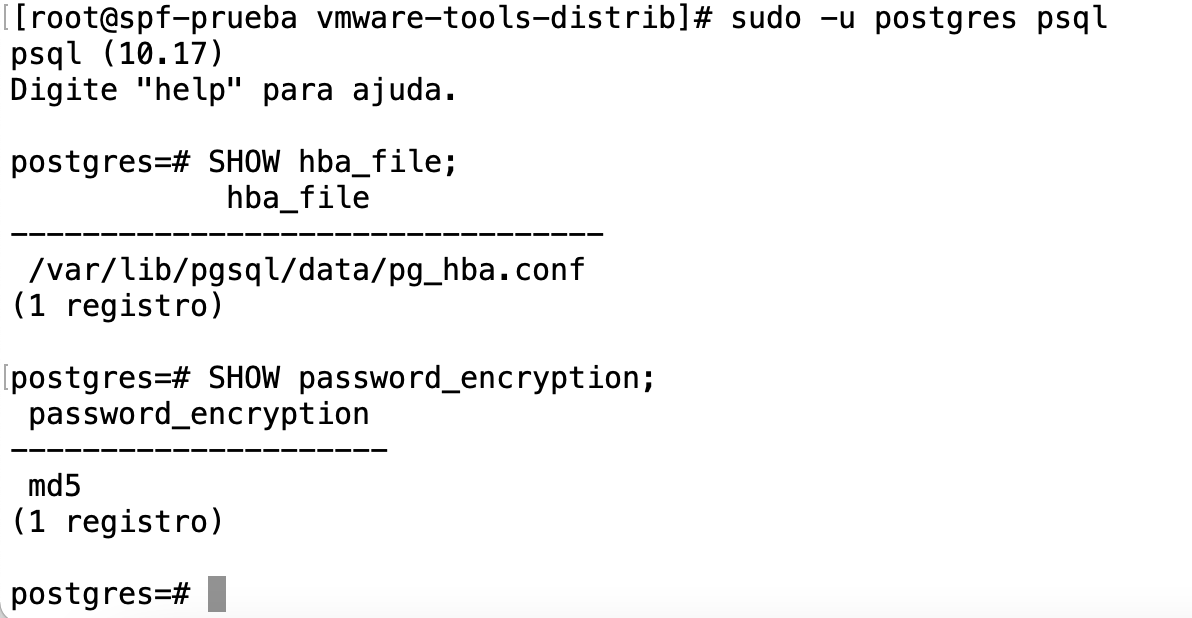
<span style="color: #474b51; font-family: Tahoma, Helvetica, Arial, sans-serif; font-size: 16px; font-style: normal; font-variant-ligatures: normal; font-variant-caps: normal; font-weight: 400; letter-spacing: normal; orphans: 2; text-align: start; text-indent: 0px; text-transform: none; white-space: normal; widows: 2; word-spacing: 0px; -webkit-text-stroke-width: 0px; background-color: #ffffff; text-decoration-thickness: initial; text-decoration-style: initial; text-decoration-color: initial; display: inline !important; float: none;">Now execute the following query to check the location of the PostgreSQL configuration '</span>**pg\_hba.conf**<span style="color: #474b51; font-family: Tahoma, Helvetica, Arial, sans-serif; font-size: 16px; font-style: normal; font-variant-ligatures: normal; font-variant-caps: normal; font-weight: 400; letter-spacing: normal; orphans: 2; text-align: start; text-indent: 0px; text-transform: none; white-space: normal; widows: 2; word-spacing: 0px; -webkit-text-stroke-width: 0px; background-color: #ffffff; text-decoration-thickness: initial; text-decoration-style: initial; text-decoration-color: initial; display: inline !important; float: none;">'.</span>

```command
SHOW hba_file;
SHOW password_encryption;
```

<span style="color: #474b51; font-family: Tahoma, Helvetica, Arial, sans-serif; font-size: 16px; font-style: normal; font-variant-ligatures: normal; font-variant-caps: normal; font-weight: 400; letter-spacing: normal; orphans: 2; text-align: start; text-indent: 0px; text-transform: none; white-space: normal; widows: 2; word-spacing: 0px; -webkit-text-stroke-width: 0px; background-color: #ffffff; text-decoration-thickness: initial; text-decoration-style: initial; text-decoration-color: initial; display: inline !important; float: none;">You will see the output as below.</span>

[![image-1636412188727.png](https://documentacao.scielo.org/uploads/images/gallery/2021-11/scaled-1680-/image-1636412188727.png)](https://documentacao.scielo.org/uploads/images/gallery/2021-11/image-1636412188727.png)

<span style="color: #474b51; font-family: Tahoma, Helvetica, Arial, sans-serif; font-size: 16px; font-style: normal; font-variant-ligatures: normal; font-variant-caps: normal; font-weight: 400; letter-spacing: normal; orphans: 2; text-align: start; text-indent: 0px; text-transform: none; white-space: normal; widows: 2; word-spacing: 0px; -webkit-text-stroke-width: 0px; background-color: #ffffff; text-decoration-thickness: initial; text-decoration-style: initial; text-decoration-color: initial; display: inline !important; float: none;">You will notice the PostgreSQL configuration "pg\_hba.conf" are located at the '</span>**/var/lib/pgsql/data**<span style="color: #474b51; font-family: Tahoma, Helvetica, Arial, sans-serif; font-size: 16px; font-style: normal; font-variant-ligatures: normal; font-variant-caps: normal; font-weight: 400; letter-spacing: normal; orphans: 2; text-align: start; text-indent: 0px; text-transform: none; white-space: normal; widows: 2; word-spacing: 0px; -webkit-text-stroke-width: 0px; background-color: #ffffff; text-decoration-thickness: initial; text-decoration-style: initial; text-decoration-color: initial; display: inline !important; float: none;">' directory, and the default password encryption for PostgreSQL on RHEL based operating system is '</span>**md5**<span style="color: #474b51; font-family: Tahoma, Helvetica, Arial, sans-serif; font-size: 16px; font-style: normal; font-variant-ligatures: normal; font-variant-caps: normal; font-weight: 400; letter-spacing: normal; orphans: 2; text-align: start; text-indent: 0px; text-transform: none; white-space: normal; widows: 2; word-spacing: 0px; -webkit-text-stroke-width: 0px; background-color: #ffffff; text-decoration-thickness: initial; text-decoration-style: initial; text-decoration-color: initial; display: inline !important; float: none;">'.</span>

<span style="color: #474b51; font-family: Tahoma, Helvetica, Arial, sans-serif; font-size: 16px; font-style: normal; font-variant-ligatures: normal; font-variant-caps: normal; font-weight: 400; letter-spacing: normal; orphans: 2; text-align: start; text-indent: 0px; text-transform: none; white-space: normal; widows: 2; word-spacing: 0px; -webkit-text-stroke-width: 0px; background-color: #ffffff; text-decoration-thickness: initial; text-decoration-style: initial; text-decoration-color: initial; display: inline !important; float: none;">Now type '\\q' to exit and quit the PostgreSQL shell.</span>

<span style="color: #474b51; font-family: Tahoma, Helvetica, Arial, sans-serif; font-size: 16px; font-style: normal; font-variant-ligatures: normal; font-variant-caps: normal; font-weight: 400; letter-spacing: normal; orphans: 2; text-align: start; text-indent: 0px; text-transform: none; white-space: normal; widows: 2; word-spacing: 0px; -webkit-text-stroke-width: 0px; background-color: #ffffff; text-decoration-thickness: initial; text-decoration-style: initial; text-decoration-color: initial; display: inline !important; float: none;">2. Next, change the working directory to '**/var/lib/pgsql/data**' and edit the configuration '**pg\_hba.conf**' using nano editor.</span>

```command
cd /var/lib/pgsql/data/
vi pg_hba.conf
```

[![image-1636412445157.png](https://documentacao.scielo.org/uploads/images/gallery/2021-11/scaled-1680-/image-1636412445157.png)](https://documentacao.scielo.org/uploads/images/gallery/2021-11/image-1636412445157.png)
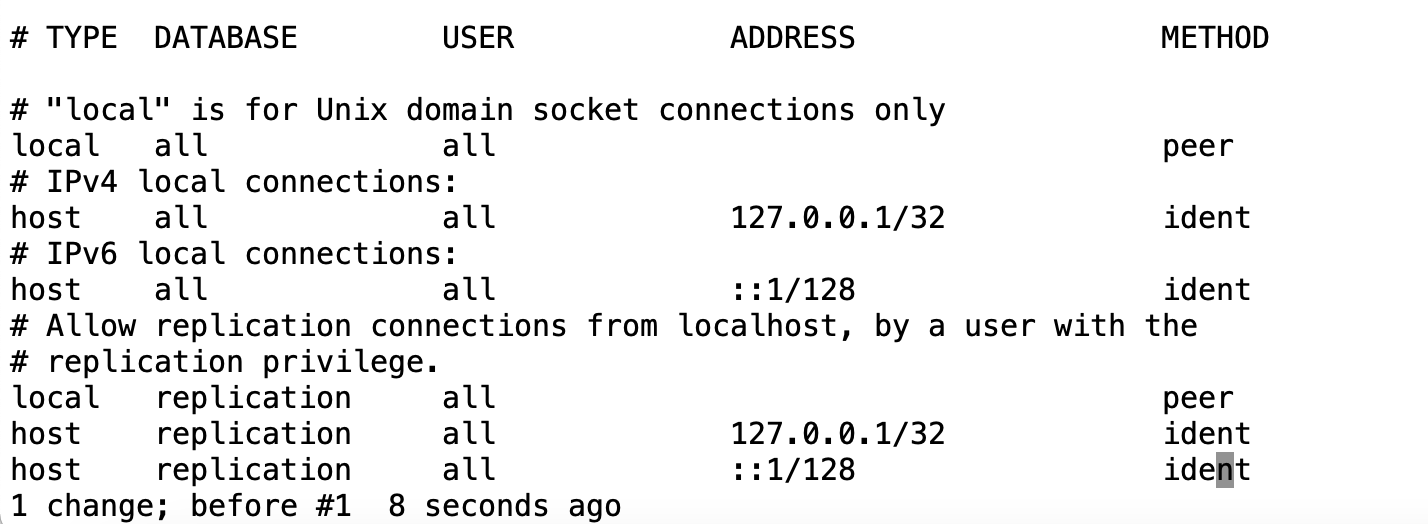
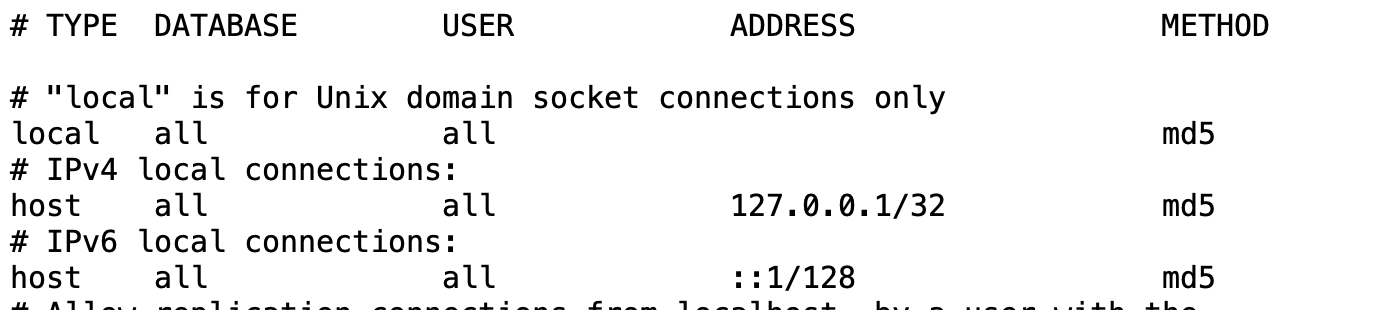
<span style="color: #474b51; font-family: Tahoma, Helvetica, Arial, sans-serif; font-size: 16px; font-style: normal; font-variant-ligatures: normal; font-variant-caps: normal; font-weight: 400; letter-spacing: normal; orphans: 2; text-align: start; text-indent: 0px; text-transform: none; white-space: normal; widows: 2; word-spacing: 0px; -webkit-text-stroke-width: 0px; background-color: #ffffff; text-decoration-thickness: initial; text-decoration-style: initial; text-decoration-color: initial; display: inline !important; float: none;">At the bottom of the line, change the local authentication method to '</span>**md5**<span style="color: #474b51; font-family: Tahoma, Helvetica, Arial, sans-serif; font-size: 16px; font-style: normal; font-variant-ligatures: normal; font-variant-caps: normal; font-weight: 400; letter-spacing: normal; orphans: 2; text-align: start; text-indent: 0px; text-transform: none; white-space: normal; widows: 2; word-spacing: 0px; -webkit-text-stroke-width: 0px; background-color: #ffffff; text-decoration-thickness: initial; text-decoration-style: initial; text-decoration-color: initial; display: inline !important; float: none;">' as below.</span>

[![image-1636412520423.png](https://documentacao.scielo.org/uploads/images/gallery/2021-11/scaled-1680-/image-1636412520423.png)](https://documentacao.scielo.org/uploads/images/gallery/2021-11/image-1636412520423.png)

Now press '**ESC**', type '**:wq**', and press "**Enter**" to save and exit.

Using this configuration, you will be prompted for the password to log in to the PostgreSQL shell.<span class="ezoic-adpicker-ad" id="bkmrk--10"></span>

3\. Next, apply the new configuration by restarting the PostgreSQL service using the following command.

```command
systemctl restart postgresql
```

Now every time you want to access the PostgreSQL shell, you must type the password for authentication.

4\. To make sure of the password authentication configuration, log in to the PostgreSQL shell using the following command.

```command
su - postgres
psql
```

Now you will be asked for a password for the default user '*postgres*'.

Type the password for the '*postgres*' database user and press '**Enter**'. If your password is correct, you will see the PostgreSQL shell as follows. Otherwise, you will see the '**FATAL**' error because the password is incorrect.

[![image-1636412705058.png](https://documentacao.scielo.org/uploads/images/gallery/2021-11/scaled-1680-/image-1636412705058.png)](https://documentacao.scielo.org/uploads/images/gallery/2021-11/image-1636412705058.png)

<span style="color: #474b51; font-family: Tahoma, Helvetica, Arial, sans-serif; font-size: 16px; font-style: normal; font-variant-ligatures: normal; font-variant-caps: normal; font-weight: 400; letter-spacing: normal; orphans: 2; text-align: start; text-indent: 0px; text-transform: none; white-space: normal; widows: 2; word-spacing: 0px; -webkit-text-stroke-width: 0px; background-color: #ffffff; text-decoration-thickness: initial; text-decoration-style: initial; text-decoration-color: initial; display: inline !important; float: none;">Additionally, you can use the one-line command to log in to the PostgreSQL shell as below.</span>

```command
# Log in as default "postgres" user
sudo -u postgres psql

# Log in as another user
sudo -u postgres psql -U username
```

## Creating New User and Database for your Application

At this stage, you will learn how to create a new user and database on PostgreSQL.

1\. Log in to the PostgreSQL shell by executing the command below.

```command
sudo -u postgres psql
```

Now type the password for PostgreSQL user '**postgres**'.

2\. Run the PostgreSQL query below to create a new user 'johndoe' with the password 'johndoestrongpassword' and give the user privileges for creating a new database and role.

```command
CREATE USER spf WITH 
CREATEDB
CREATEROLE
PASSWORD 'spfstrongpassword';
```

<span style="color: #474b51; font-family: Tahoma, Helvetica, Arial, sans-serif; font-size: 16px; font-style: normal; font-variant-ligatures: normal; font-variant-caps: normal; font-weight: 400; letter-spacing: normal; orphans: 2; text-align: start; text-indent: 0px; text-transform: none; white-space: normal; widows: 2; word-spacing: 0px; -webkit-text-stroke-width: 0px; background-color: #ffffff; text-decoration-thickness: initial; text-decoration-style: initial; text-decoration-color: initial; display: inline !important; float: none;">After that, verify the new user using the following query.</span>

```command
\du
```

<span style="color: #474b51; font-family: Tahoma, Helvetica, Arial, sans-serif; font-size: 16px; font-style: normal; font-variant-ligatures: normal; font-variant-caps: normal; font-weight: 400; letter-spacing: normal; orphans: 2; text-align: start; text-indent: 0px; text-transform: none; white-space: normal; widows: 2; word-spacing: 0px; -webkit-text-stroke-width: 0px; background-color: #ffffff; text-decoration-thickness: initial; text-decoration-style: initial; text-decoration-color: initial; display: inline !important; float: none;">Now you will see the new user 'spf' with the list of roles '</span>**Create role**<span style="color: #474b51; font-family: Tahoma, Helvetica, Arial, sans-serif; font-size: 16px; font-style: normal; font-variant-ligatures: normal; font-variant-caps: normal; font-weight: 400; letter-spacing: normal; orphans: 2; text-align: start; text-indent: 0px; text-transform: none; white-space: normal; widows: 2; word-spacing: 0px; -webkit-text-stroke-width: 0px; background-color: #ffffff; text-decoration-thickness: initial; text-decoration-style: initial; text-decoration-color: initial; display: inline !important; float: none;">' and '</span>**Create DB**<span style="color: #474b51; font-family: Tahoma, Helvetica, Arial, sans-serif; font-size: 16px; font-style: normal; font-variant-ligatures: normal; font-variant-caps: normal; font-weight: 400; letter-spacing: normal; orphans: 2; text-align: start; text-indent: 0px; text-transform: none; white-space: normal; widows: 2; word-spacing: 0px; -webkit-text-stroke-width: 0px; background-color: #ffffff; text-decoration-thickness: initial; text-decoration-style: initial; text-decoration-color: initial; display: inline !important; float: none;">' as below.</span>

[![image-1636412942826.png](https://documentacao.scielo.org/uploads/images/gallery/2021-11/scaled-1680-/image-1636412942826.png)](https://documentacao.scielo.org/uploads/images/gallery/2021-11/image-1636412942826.png)

<span style="color: #474b51; font-family: Tahoma, Helvetica, Arial, sans-serif; font-size: 16px; font-style: normal; font-variant-ligatures: normal; font-variant-caps: normal; font-weight: 400; letter-spacing: normal; orphans: 2; text-align: start; text-indent: 0px; text-transform: none; white-space: normal; widows: 2; word-spacing: 0px; -webkit-text-stroke-width: 0px; background-color: #ffffff; text-decoration-thickness: initial; text-decoration-style: initial; text-decoration-color: initial; display: inline !important; float: none;">3. Next, to create a new user database on PostgreSQL, run the following query.</span>

```command
CREATE DATABASE spf OWNER spf;
```

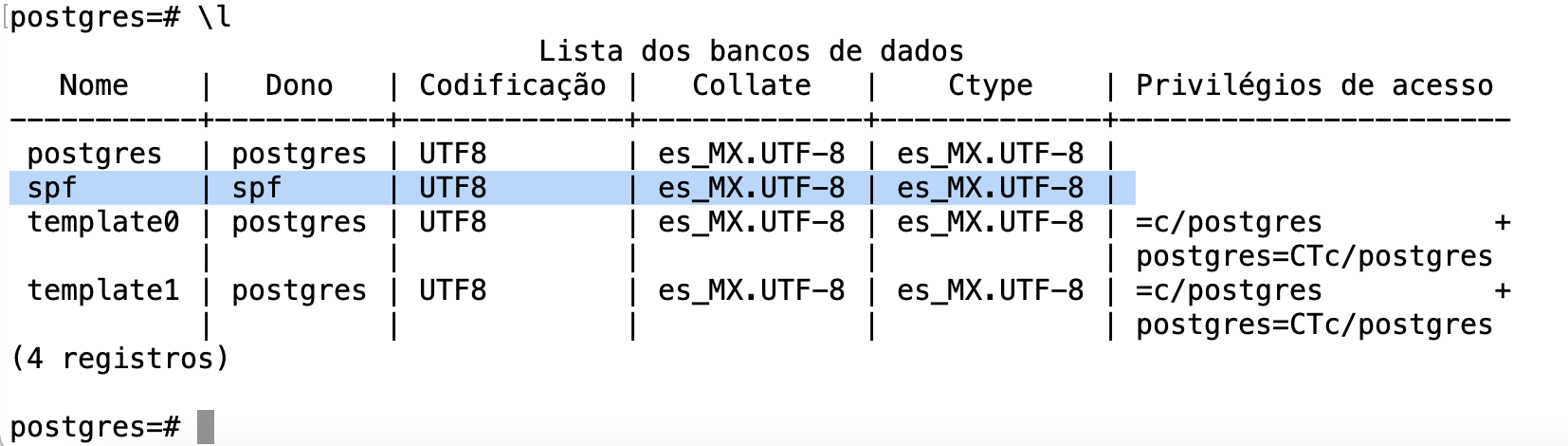
<span style="color: #474b51; font-family: Tahoma, Helvetica, Arial, sans-serif; font-size: 16px; font-style: normal; font-variant-ligatures: normal; font-variant-caps: normal; font-weight: 400; letter-spacing: normal; orphans: 2; text-align: start; text-indent: 0px; text-transform: none; white-space: normal; widows: 2; word-spacing: 0px; -webkit-text-stroke-width: 0px; background-color: #ffffff; text-decoration-thickness: initial; text-decoration-style: initial; text-decoration-color: initial; display: inline !important; float: none;">Now verify the new database using the following query.</span>

```command
\l
```

<span style="color: #474b51; font-family: Tahoma, Helvetica, Arial, sans-serif; font-size: 16px; font-style: normal; font-variant-ligatures: normal; font-variant-caps: normal; font-weight: 400; letter-spacing: normal; orphans: 2; text-align: start; text-indent: 0px; text-transform: none; white-space: normal; widows: 2; word-spacing: 0px; -webkit-text-stroke-width: 0px; background-color: #ffffff; text-decoration-thickness: initial; text-decoration-style: initial; text-decoration-color: initial; display: inline !important; float: none;">And you will see the new database 'spf' with the owner 'spf' as the screenshot below.</span>

[![image-1636413026643.png](https://documentacao.scielo.org/uploads/images/gallery/2021-11/scaled-1680-/image-1636413026643.png)](https://documentacao.scielo.org/uploads/images/gallery/2021-11/image-1636413026643.png)

## Reference link

[https://www.howtoforge.com/how-to-install-postgresql-on-rocky-linux/](https://www.howtoforge.com/how-to-install-postgresql-on-rocky-linux/)

[https://www.digitalocean.com/community/tutorials/how-to-install-and-use-postgresql-on-rocky-linux-8](https://www.digitalocean.com/community/tutorials/how-to-install-and-use-postgresql-on-rocky-linux-8)