# HOW TO INSTALL MONGODB ON ROCKY LINUX

## Prerequisites

- A fresh server running Rocky Linux 8 with a minimum of 10 GB of free disk space
- A non-root user with sudo privileges configured on the server

## Update the System

Login to the system using root or sudo user depending on your privilege configuration, and update the system using the following command.

```command
sudo dnf update -y
```

## Installing MongoDB

The MongoDB package is not included in the default repositories for Rocky Linux 8 because it is not considered part of the "base" system. Thus, you need to add the repository containing the package before installing MongoDB.

MongoDB comes in two editions the community edition and the enterprise edition. The community edition is free while the enterprise edition offers additional features. This guide is for the community edition.

Run the following command to add the MongoDB Repository on your system.

```
cat > /etc/yum.repos.d/mongodb.repo << 'EOL'
[mongodb-org-4.4]
name=MongoDB Repository
baseurl=https://repo.mongodb.org/yum/redhat/$releasever/mongodb-org/4.4/x86_64/
gpgcheck=1
enabled=1
gpgkey=https://www.mongodb.org/static/pgp/server-4.4.asc
EOL
```

<span style="color: #474b51; font-family: Tahoma, Helvetica, Arial, sans-serif; font-size: 16px; font-style: normal; font-variant-ligatures: normal; font-variant-caps: normal; font-weight: 400; letter-spacing: normal; orphans: 2; text-align: start; text-indent: 0px; text-transform: none; white-space: normal; widows: 2; word-spacing: 0px; -webkit-text-stroke-width: 0px; background-color: #ffffff; text-decoration-thickness: initial; text-decoration-style: initial; text-decoration-color: initial; display: inline !important; float: none;">Once the repository is enabled, run the following command to install the mongoDB community edition.</span>

```command
dnf update
dnf install -y mongodb-org
```

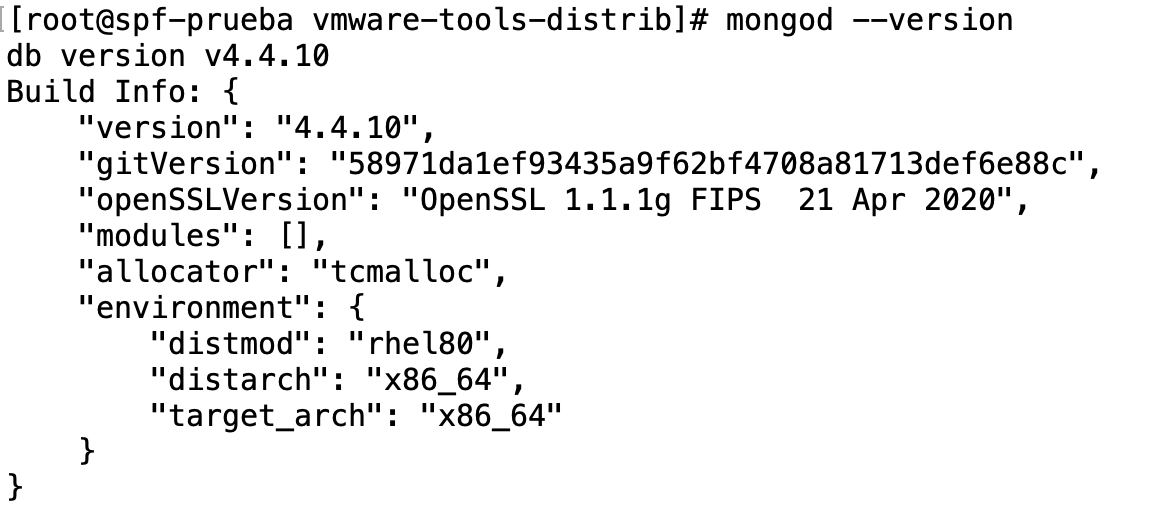
<span style="color: #474b51; font-family: Tahoma, Helvetica, Arial, sans-serif; font-size: 16px; font-style: normal; font-variant-ligatures: normal; font-variant-caps: normal; font-weight: 400; letter-spacing: normal; orphans: 2; text-align: start; text-indent: 0px; text-transform: none; white-space: normal; widows: 2; word-spacing: 0px; -webkit-text-stroke-width: 0px; background-color: #ffffff; text-decoration-thickness: initial; text-decoration-style: initial; text-decoration-color: initial; display: inline !important; float: none;">Once the installation is complete, verify the version installed as follows.</span>

```command
mongod --version
```

[![image-1636410940818.png](https://documentacao.scielo.org/uploads/images/gallery/2021-11/scaled-1680-/image-1636410940818.png)](https://documentacao.scielo.org/uploads/images/gallery/2021-11/image-1636410940818.png)

<span style="color: #474b51; font-family: Tahoma, Helvetica, Arial, sans-serif; font-size: 16px; font-style: normal; font-variant-ligatures: normal; font-variant-caps: normal; font-weight: 400; letter-spacing: normal; orphans: 2; text-align: start; text-indent: 0px; text-transform: none; white-space: normal; widows: 2; word-spacing: 0px; -webkit-text-stroke-width: 0px; background-color: #ffffff; text-decoration-thickness: initial; text-decoration-style: initial; text-decoration-color: initial; display: inline !important; float: none;">The MongoDB service doesn't start automatically after installation. You can verify this by running the command as follows.</span>

```command
systemctl status mongod
```

<span style="color: #474b51; font-family: Tahoma, Helvetica, Arial, sans-serif; font-size: 16px; font-style: normal; font-variant-ligatures: normal; font-variant-caps: normal; font-weight: 400; letter-spacing: normal; orphans: 2; text-align: start; text-indent: 0px; text-transform: none; white-space: normal; widows: 2; word-spacing: 0px; -webkit-text-stroke-width: 0px; background-color: #ffffff; text-decoration-thickness: initial; text-decoration-style: initial; text-decoration-color: initial; display: inline !important; float: none;">The output should be similar to that below:</span>

[![image-1636411003039.png](https://documentacao.scielo.org/uploads/images/gallery/2021-11/scaled-1680-/image-1636411003039.png)](https://documentacao.scielo.org/uploads/images/gallery/2021-11/image-1636411003039.png)

<span style="color: #474b51; font-family: Tahoma, Helvetica, Arial, sans-serif; font-size: 16px; font-style: normal; font-variant-ligatures: normal; font-variant-caps: normal; font-weight: 400; letter-spacing: normal; orphans: 2; text-align: start; text-indent: 0px; text-transform: none; white-space: normal; widows: 2; word-spacing: 0px; -webkit-text-stroke-width: 0px; background-color: #ffffff; text-decoration-thickness: initial; text-decoration-style: initial; text-decoration-color: initial; display: inline !important; float: none;">Since the service has not started, start it manually by running the following command.</span>

```command
systemctl start mongod
```

<span style="color: #474b51; font-family: Tahoma, Helvetica, Arial, sans-serif; font-size: 16px; font-style: normal; font-variant-ligatures: normal; font-variant-caps: normal; font-weight: 400; letter-spacing: normal; orphans: 2; text-align: start; text-indent: 0px; text-transform: none; white-space: normal; widows: 2; word-spacing: 0px; -webkit-text-stroke-width: 0px; background-color: #ffffff; text-decoration-thickness: initial; text-decoration-style: initial; text-decoration-color: initial; display: inline !important; float: none;">To enable MongoDB to automatically start on boot time, run the following command.</span>

```command
systemctl enable mongod
```

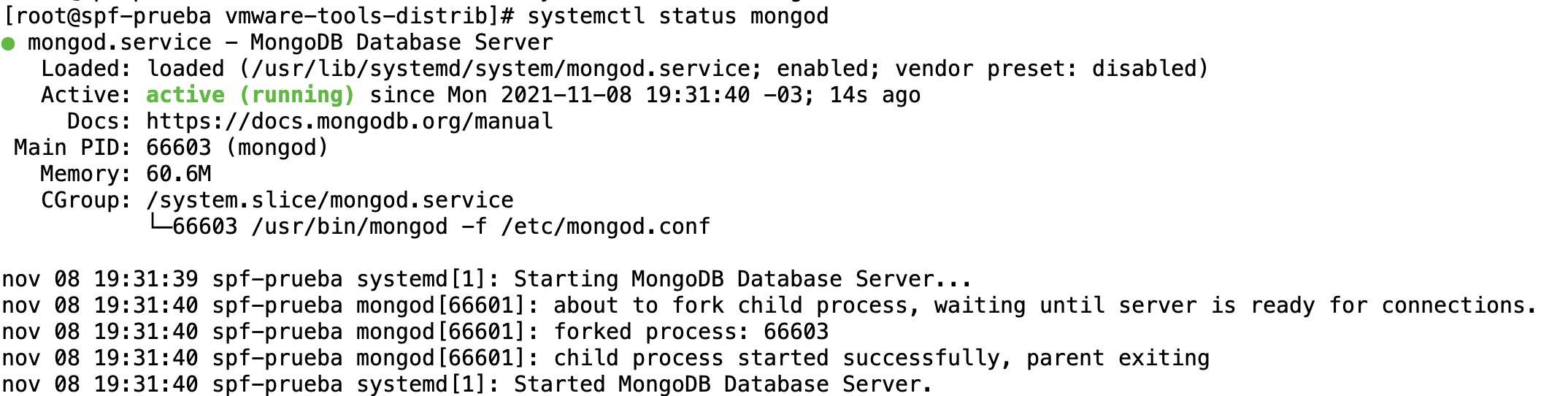
<span style="color: #474b51; font-family: Tahoma, Helvetica, Arial, sans-serif; font-size: 16px; font-style: normal; font-variant-ligatures: normal; font-variant-caps: normal; font-weight: 400; letter-spacing: normal; orphans: 2; text-align: start; text-indent: 0px; text-transform: none; white-space: normal; widows: 2; word-spacing: 0px; -webkit-text-stroke-width: 0px; background-color: #ffffff; text-decoration-thickness: initial; text-decoration-style: initial; text-decoration-color: initial; display: inline !important; float: none;">At this point, MongoDB has been installed and configured on the server. Verify the status of MongoDB service as follows.</span>

```command
systemctl status mongod
```

[![image-1636411097194.png](https://documentacao.scielo.org/uploads/images/gallery/2021-11/scaled-1680-/image-1636411097194.png)](https://documentacao.scielo.org/uploads/images/gallery/2021-11/image-1636411097194.png)